Note: this page lists features that can be deprecated and obsolete.
Using Google Secure Search over SSL (Secure Socket Layer), all your search queries and search traffic are encrypted using SSL so they can't be easily recovered by a third party such as employers and internet service providers (ISPs).
You can add Secure Search Provider to your list of available Chrome, Firefox or Internet Explorer search provders. Add Google Secure Search Provider by clicking once on the button below and confirm the addition.
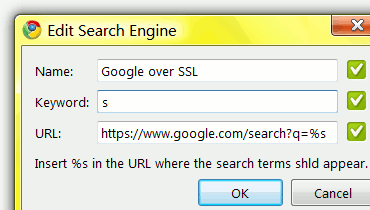
Pic.1 Google Chrome™: Confirm Search Engine addition.
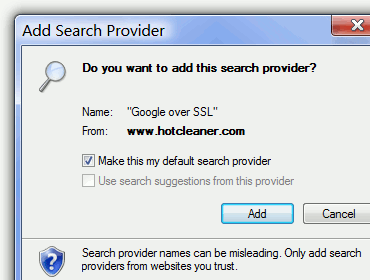
Pic.2 Internet Explorer: Confirm Search Engine addition.
Google Chrome™: right-click on the address bar and select "Edit search engines". Select Google Secure Search over SSL and click Make Default
Additionally, Chrome allows you to assign and use keywords to various search engines and services.For example, you can use s for Secure Search by typing s and pressing the TAB key:

Firefox - Change Address Bar Search Provider:
1. type in your Firefox address bar: about:config
2. Inside of the filter search box, type in: keyword.URL
3. Double-click on keyword.URL and change the value to (Pic.3): https://www.google.com/search?q=
4. Restart Firefox.
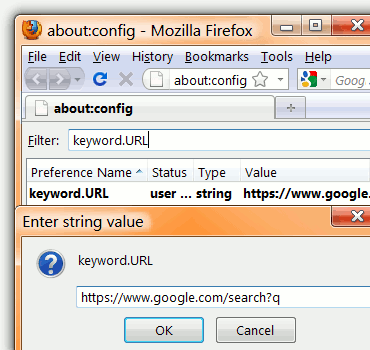
Pic.3 Firefox: Change Address Bar Search Provider.
Additionally, Firefox allows you to create and use a keyword to Secure Search over SSL. For example, typing s Chrome will run a search on Google over SSL for Chrome:

Official Google Blog: Search more securely with encrypted Google web search Learn more about searching on Google with SSL: Google search over SSL. If you have any additional questions or require further indormation, please, do not hesitate to contact us.