Click&Clean is a Firefox extension, which helps you remove your internet history and enhance your security and privacy within seconds. It allows you perform a 1-click cleanup while you browsing or delete your private data when you exit Firefox. As an advanced security feature, it also includes the ability to auto-run any external Cleaner, so that you can get even more powerful and secure cleaning solution.
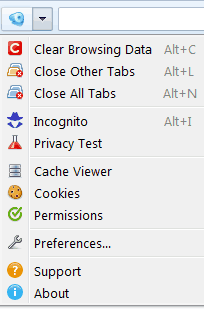
Instant cleaning and easy access. You can delete your internet history with just 1-click on Click&Clean icon in the Firefox toolbar. The Click&Clean menu lets you quickly access the preferences and additional features, such as Privacy Test; Incognito (Private Browsing); Permissions Manager; Cache Viewer; Cookies; Close All Tabs; Close Other Tabs etc.
User friendly interface that can be easily used by novice and skilled PC users alike. The preferences are separated into several well-organized sections described below:
Clear Private Data - at this section you can adjust the default cleaning settings, such as Clear Browsing Data; Clear Browsing Data when Firefox closes; Ask me before cleaning private data; Time to display prompt.
Also, you may access additional cleaning options. Click on "Clear Now" button, then select time range to clear and choose what type of private data should be removed: Browsing & Download history - Form & Search history - Cookies - Cache - Active Logins - Offline Website Data - Site Preferences.
External Application - in this section you may define an external application or batch script that will be launched immediately after the default cleaning complete. For example, you can use any cleanup tool like Bleach Bit, Computer Janitor etc.
Additional Features: Remove Flash cookies LSOs - Close all Tabs & Windows before cleaning - Do not close the latest active tab.
Unfortunately, in 2018 Mozilla just removed all Firefox non-sandboxed add-ons from the official add-ons website. But, you still can download and install Click&Clean for Firefox from our website. By downloading and installing Click&Clean, you agree to our privacy policy.
You can install Click&Clean to Mozilla Firefox™ v52 and below or any legacy Gecko based browsers by completing the following steps:
1. Download the add-on package as XPI file. 100% safe, scanned by Virus Total.
2. For security reasons, you can check downloaded file size and hash. File size: 96KB / 98763 bytes,
hash - SHA256: 1e0f07fc8690379632b9c
3. Open Firefox and go to about:addons page, then drag and drop the downloaded xpi file onto the list of currently installed addons. Click on Install button and restart your Firefox when prompted to finalize the installation.
4. After installation you will see the Click&Clean button in the Firefox toolbar next to the address bar, so you can start using it right away.